
Embed and test the SPCast player
Put your radio on your website: find the SPCast player in the customer portal, copy your embed code and get help adding it to your homepage.
A player on your website lets visitors tune in directly. Once SPCast is set up, find your player and its embed code in product management in the STREAMPANEL customer portal. Our support team helps you choose a player and add it to your homepage.
From the customer portal to your player
- Sign in to the STREAMPANEL customer portal and open your configured SPCast product.
- Open product management. The documented interface lists HTML5 players with and without cover artwork under Tools.
- Choose a variant and copy the code shown for your station. The basic standard player uses HTML; the MSE version also needs JavaScript, and the player with cover artwork adds CSS.
- Open an HTML or code area in your CMS where the player should appear. Add the components using your CMS’s supported options and save a preview first.
- Open the preview as a visitor and start playback. If your CMS removes scripts or the player stays silent, support will help you with the integration.
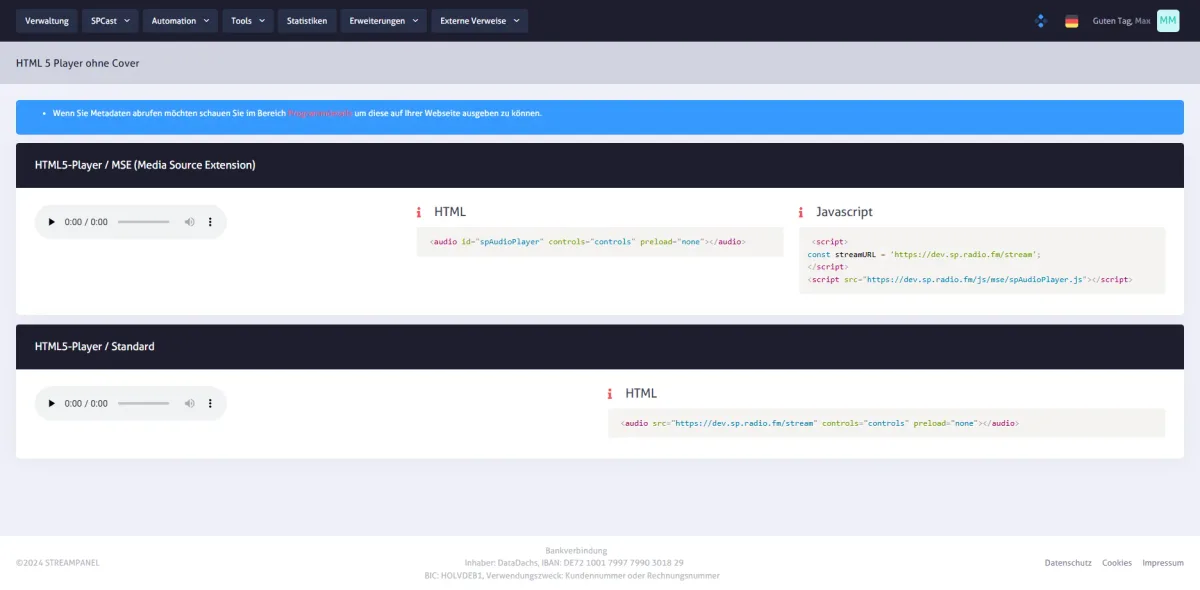
A basic example for your own HTML page
For the standard player with a directly playable audio URL, an audio element is enough. This example follows the structure shown in the screenshot:
<audio controls preload="none"
       src="https://HOSTNAME.sp.radio.fm/stream">
  Your browser does not support this audio player.
</audio>
Replace the entire example URL with your station’s public HTTPS audio URL from product management. HOSTNAME is a placeholder. Do not use a broadcaster login or password here.
The browser supplies its own playback controls. Audio starts after the listener takes an action. This example does not add cover artwork or track information, and it does not replace an MSE or HLS integration. Use the corresponding player code from product management for those variants. The HTML audio documentation explains the attributes.
Cover artwork, MSE and existing radio players
The player with cover artwork uses HTML, CSS and JavaScript together. Include all the supplied components. If your CMS has separate fields for HTML, design and scripts, support can help you place them. Tell us which CMS and player you want to use.
For the AIO Radio Station Player, follow the dedicated MSE integration guide. It explains how to load the station-specific spAudioPlayer.js in that player’s template.html. This route applies to the AIO player.
Help visitors hear the right programme
Use an HTTPS audio URL on an HTTPS website. AutoDJ accepts MP3 only; other formats are available for live broadcasts. Playback depends on the output used by the player.
- Open the embedded player on a phone and a computer. Start and pause playback using the keyboard too.
- Listen to an AutoDJ playlist. Take over with your live encoder, then disconnect it and listen for AutoDJ to return.
- If your player displays metadata, check the title and cover artwork. Reload the page afterwards.
If the direct listening URL works but the embedded player does not, send support your website, CMS, chosen player and error message. If neither works, follow the setup tutorial through the first listening test. Because we develop SPCast ourselves, we can also investigate and fix faults in the software.
When changing hosting providers, update apps and radio directories as well as the website player. The migration guide helps you prepare the switch.